Manage a User’s Permissions
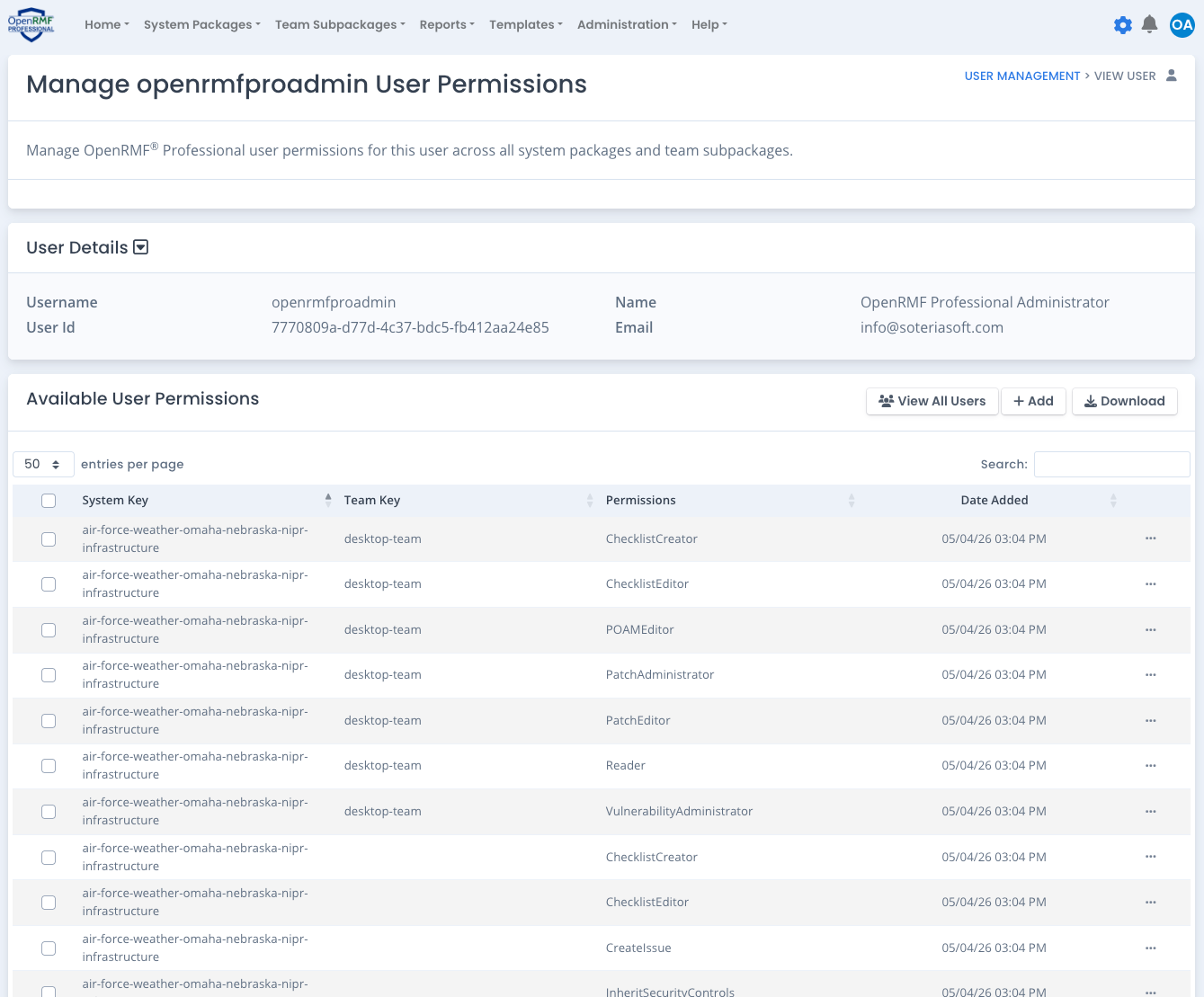
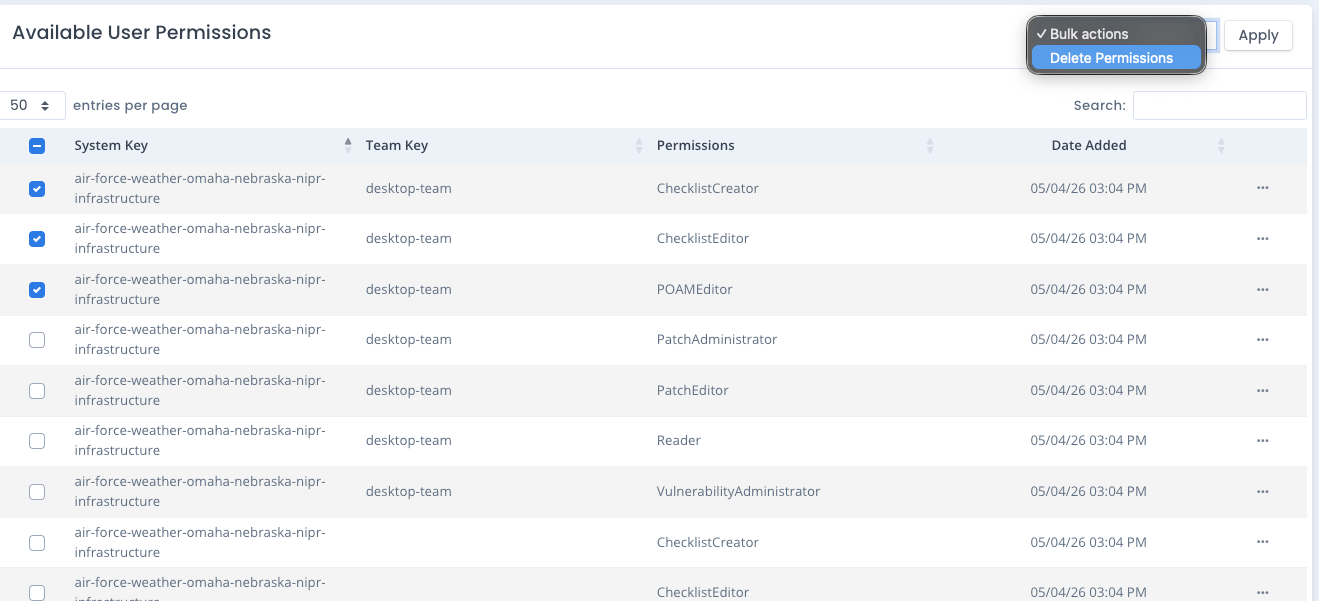
To manage a user’s permissions click on their login name in the user listing from the Manage User Permissions screen. A listing similar to below lists all active system package and team subpackage permissions. From here you can click the ... menu beside users to delete that permission. Use the checkboxes to perform a bulk delete on multiple permissions. Or click the Add button to add additional permissions to the current user being viewed.
You also can click the “View All Users” button to return to the user listing.
And finally click the Download button to download the list of permissions for this user into a Microsoft Excel *.xlsx file.
Add User Permissions
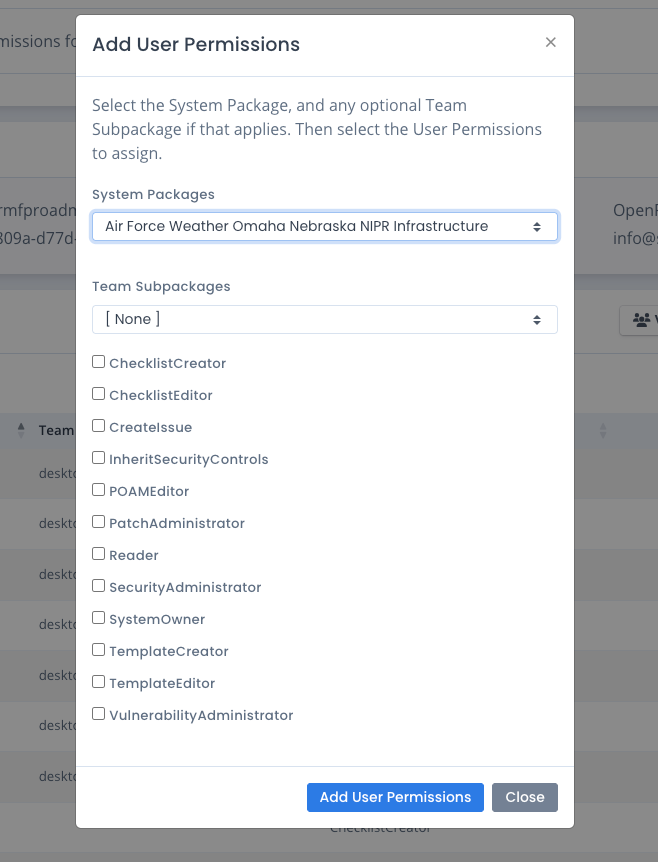
To add additional permissions to a user, click the Add button. A popup screen similar to the below appears. You must at least select a System Package from the available system package listing. Once you do that, the list of available system package level permissions appear. Click the checkboxes next to the permissions required and then click the Add User Permissions button. The user permissions are updated and the table behind the window refreshes with the latest listing.
The popup window stays in case you need to add additional permissions for this user. When done click Close.
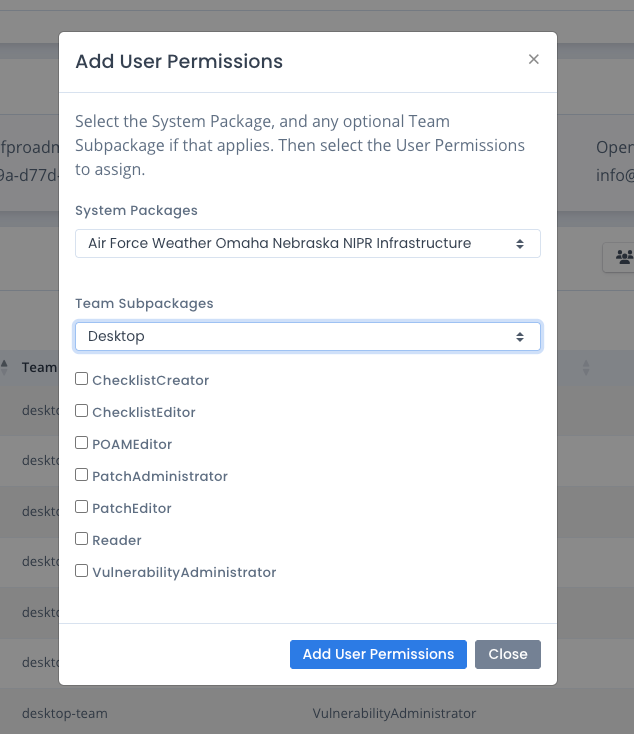
If you need to add Team Subpackage permissions to a user, once you select the system package dropdown click the dropdown for the team subpackage listing. If there are any, select the desired one.
The list of team subpackage permissions appears just below that dropdown selection. The team subpackage permissions listing is different than the system package permissions. Click the checkboxes next to the permissions required and then click the Add User Permissions button. The user permissions are updated and the table behind the window refreshes with the latest listing.
The popup window stays in case you need to add additional permissions for this user. When done click Close.
There is a roles and permissions matrix available in the Soteria Software documentation area where your administrator downloads the software and documentation. Please ask them for that up-to-date matrix to see individual permission requirements related to OpenRMF® Professional screens and features.
Delete a User Permission
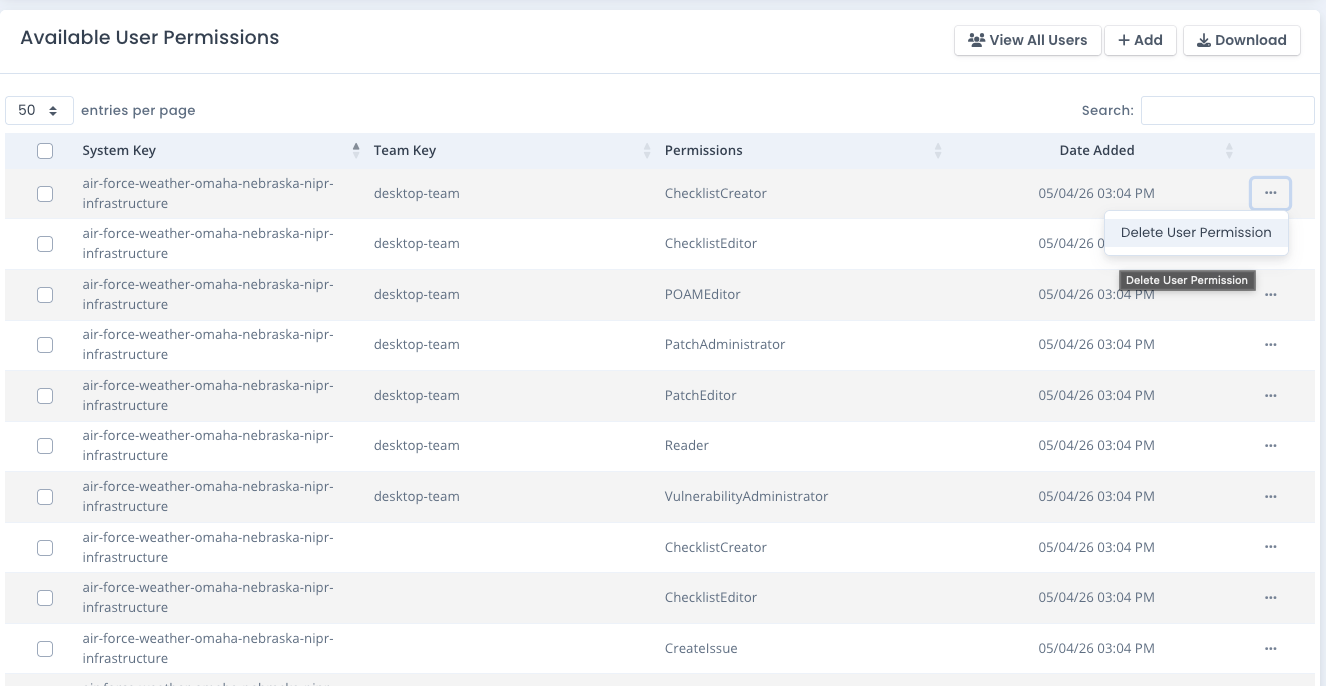
To delete an individual user permission, click the ... menu on that permission row in the table listing and select Delete User Permission. Click the OK button to verify and that permission is remove. The table of current user permissions reloads to show the new listing.
The user must log out and back in to see the change on the web interface as noted below.
Bulk Delete a User’s Permissions
To remove multiple user permissions in bulk, use the checkboxes next to user permissions and select one or more permissions. Then click the Delete Permissions options in the bulk menu shown below to remove them. When prompted to verify click OK and all permissions are removed. The table is then reloaded to show the current permissions listing.
The user must log out and back in to see the change on the web interface as noted below.
User Permissions are Listed upon Login for a User
An OpenRMF® Professional user’s permissions are saved in a session listing upon their successful login. When a user’s permissions are added or deleted while they are currently logged in, the web interface may still show the options on buttons, menus, and data differently than expected based on permission changes.
To use the new permission set, the user must logout to have these reset. Or go to their Permission listing using the icon in the top right, and click the Reset button on that page. The backend components of OpenRMF® Professional, howwever, do read any permission changes immediately. So the security model will stop bad actions from happening.
Please keep this in mind as you add and remove permissions from users. This is a change from previous OpenRMF® Professional versions and is done for performance and security combined.