Software Asset Listing
The software bill of materials (BOM) is built automatically from uploading patch scans from devices that have fully credentialed scans (or uncredentialed if allowed in System Package Preferences).
Automatic Software Asset Tracking
The Patch Scan uploads allow OpenRMF® Professional to track all software assets in the system package by listing all software detected when devices are scanned. For each device scanned, the software detected is added to the Software Assets listing for that system package automatically. If any software on a later scan is added, that is also added to keep pace with the latest scan information. And any software not on the latest scan is removed if automatically added.
For software initially automatically added from a scan, the Software Type is set to “OS” for operating system. You can edit that and specify it to be an application or support and drivers via the … edit menu if you have proper permissions.
For data that is linked in the table, you can click on that information to automatically search the table and filtering it for that exact match. The item you click appears in the Search box just to the top right of the table and automatically filters the data for you. Clear the Search box to return the full listing.
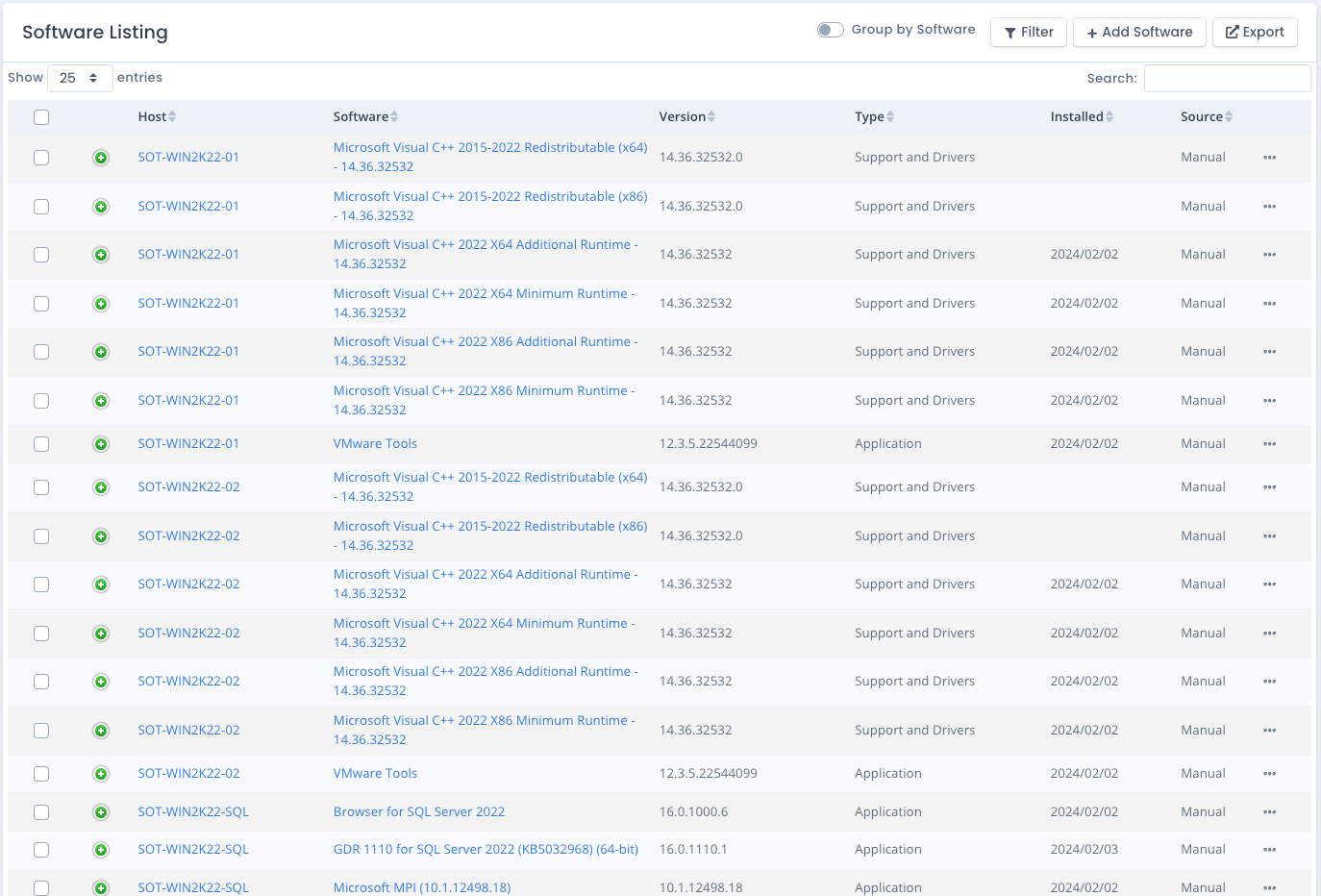
Filter the Software Assets Listing
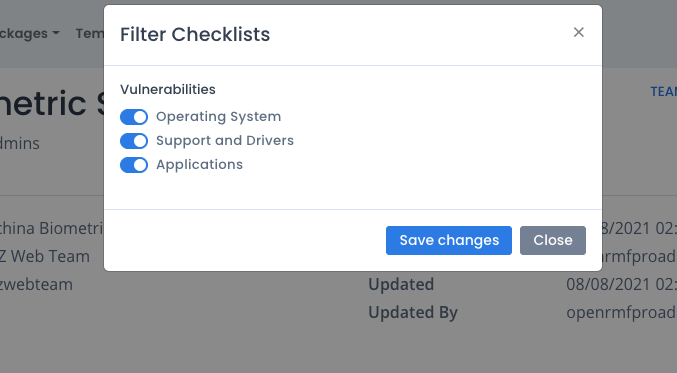
You also can filter the listing of software by clicking the Filter button and specifying to show OS, Support and Drivers, as well as Applications. This allows you to only show pertinent information in your listing and exporting that data correctly.
Manually Adding Software Assets
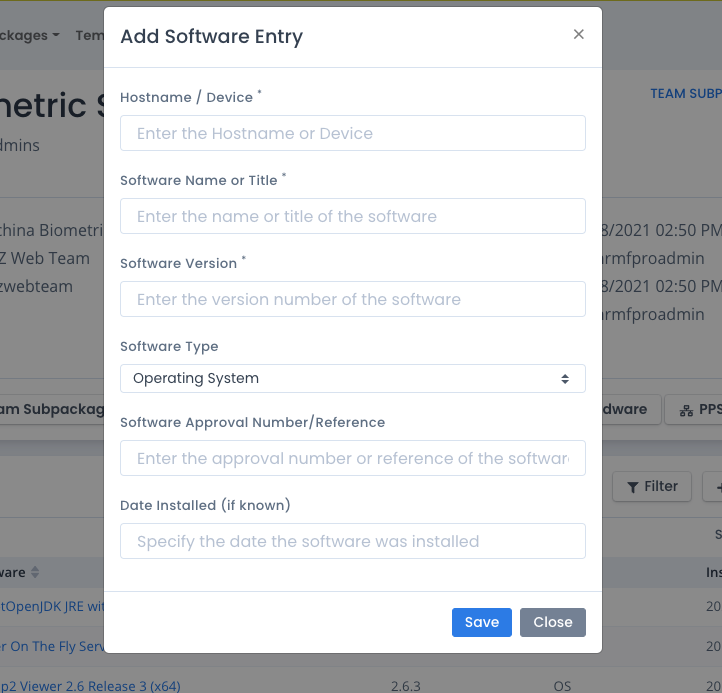
You also can click the Add button to add a software asset entry for your system package. All manually added software is not automatically removed based on patch scans.
Uploading Software Items
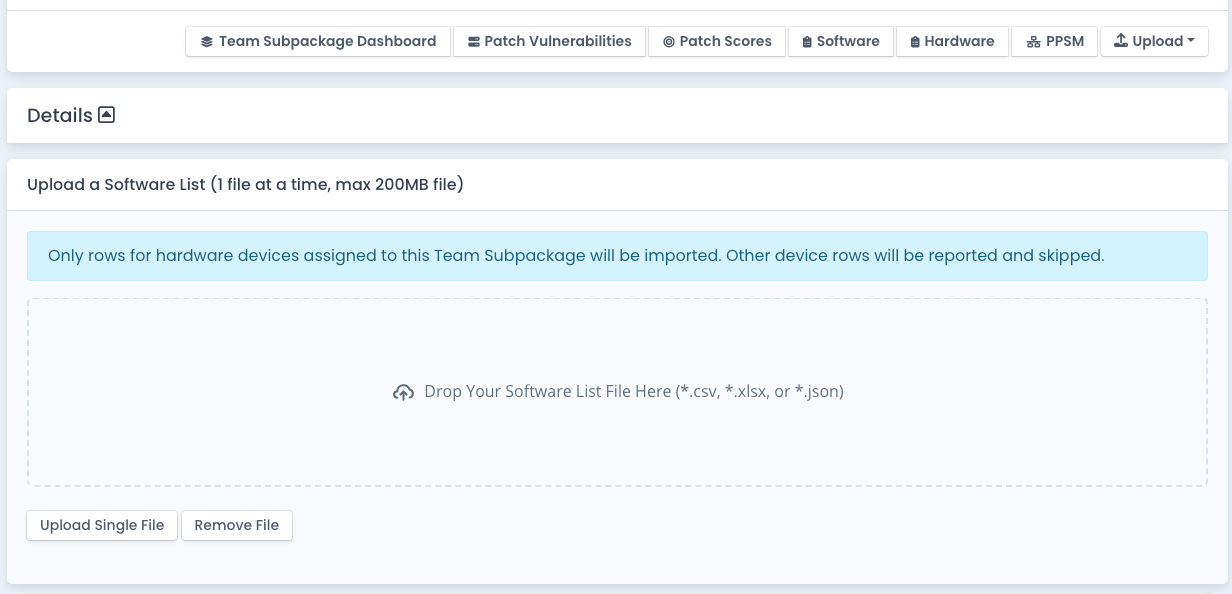
You also can upload a list of software items with the proper columns / fields to add or bulk edit (based on hostname, software title, and version) software assets for your system package. If you are a System Owner for the package, you can click the Upload –> Software List button and select a proper CSV, XLSX, or JSON file. There is sample data linked and listed below. This allows quick loading of software assets and descriptive information to use at your system package level.
Download a Sample XLSX as a starting point for uploading a spreadsheet or CSV file. You can also export the general PPSM listing from this page, edit the data, and upload that same file as well for bulk adding or updating the software information.
The JSON for the file upload or a JSON post with data in the body for the external API is shown below.
[
    {
        "device": "DEGTHAT2",
        "software": "Windows",
        "version": "10",
        "softwareType": "OS",
        "approval": "#11002",
        "installedOn": "10/01/2021"
    },
    {
        "device": "DEGTHAT2",
        "software": "Microsoft Office",
        "version": "365",
        "softwareType": "Application",
        "approval": "#98765",
        "installedOn": "10/01/2021"
    },
    {
        "device": "DEGTHAT3",
        "software": "Windows",
        "version": "10",
        "softwareType": "OS",
        "approval": "#11002",
        "installedOn": "10/01/2021"
    },
    {
        "device": "DEGTHAT3",
        "software": "Microsoft Office",
        "version": "365",
        "softwareType": "Application",
        "approval": "#98765",
        "installedOn": "10/01/2021"
    }
]
Manually Deleting Software Assets
You can choose the delete link beside each software asset to remove it if you have proper permissions. When done the record will be deleted from the listing at the Team Subpackage level as well as the main System Package level.