Synchronizing User Permissions for System Packages and Team Subpackages
Starting with OpenRMF® Professional v2.14.01, managing user permissions has moved inside of the application versus being in Keycloak. These were Group permissions in Keycloak in previous versions. However, as users are given more access to a growing list of system packages, this became a performance bottleneck. Each system package has 12+ permissions allowed per system package associated when you create a new package for an ATO. And each Team Subpackage has 6+ permissions total allowed for that team subpackage as well. You do not need every permission in those areas. However as your number of system packages grows, this permission list can expand very quickly.
To keep the security model intact while shrinking the overhead of checking permissions, we synchronized the group permissions to the internal OpenRMF® Professional application. And then you can manage the permissions from inside the OpenRMF® Professional application. The user authentication (user/password, Windows AD, LDAP, CAC, etc.) and static list of Roles is staying in Keycloak.
This allows you to grow your user and system package (ATO) listings without a big performance hit on the application, network traffic, and management overhead.
The first step of this whole process is synchronizing user permissions from Keycloak into OpenRMF® Professional internally. You must have the Administrator role for you to access this area of the application.
Permission Synchronization
To perform the initial synchronization, you need to go to the Manage User Permissions screen. The Administration Menu has a new Manage User Permissions listing near the bottom of the menu. Click on that menu option to load the User Permissions Management screens. If you have yet to synchronize them from the internal Keycloak database, then you will see the screen below.
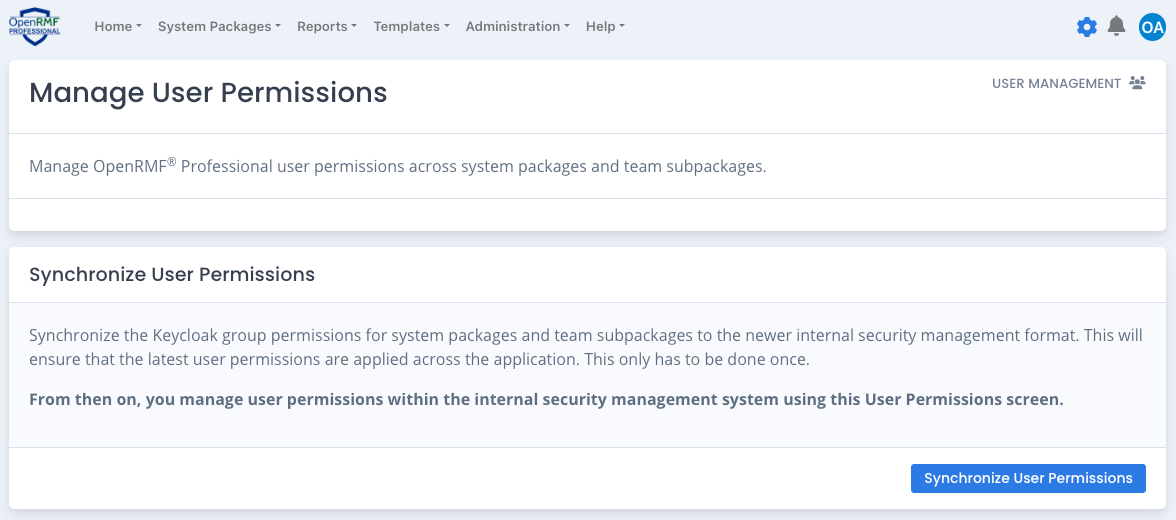
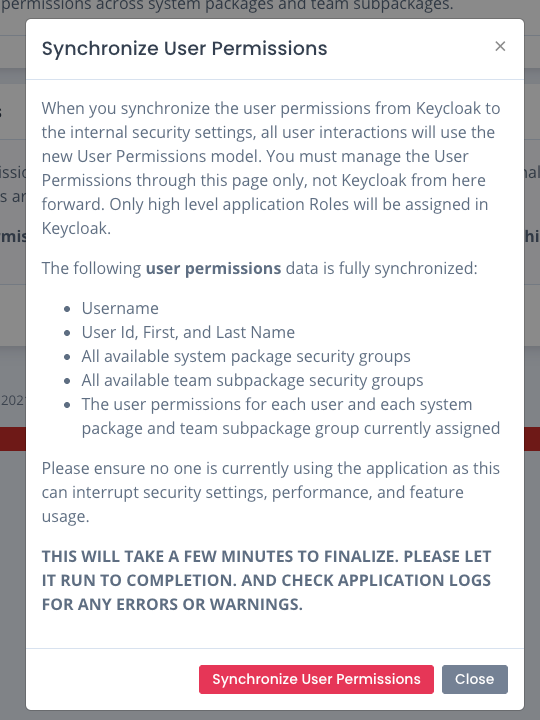
Click the Synchronize User Permission button and a verification window appears explaining the process, what will be transferred over, and what stays within Keycloak (User Information and Roles). Click the Synchronize User Permissions button to verify and start the process. Depending on your list of users and permissions this can take mere seconds to a few minutes to do. You will see the typical spinning circle icon as it is working.
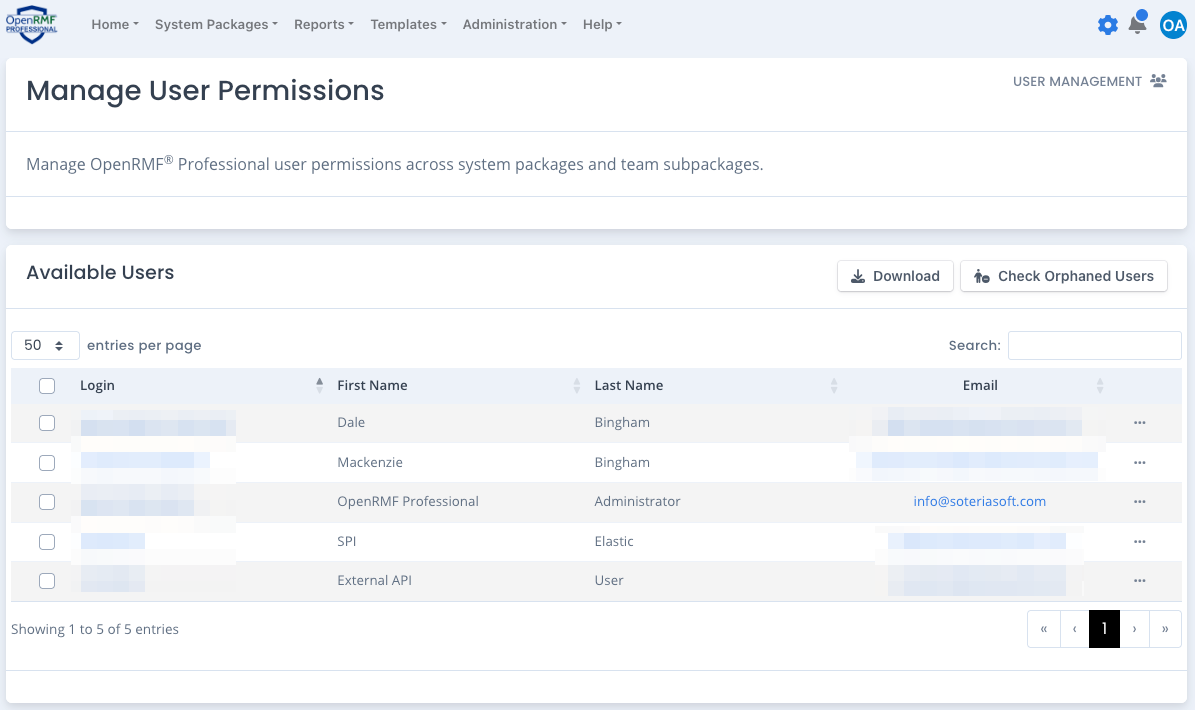
When complete, you see a green status message showing success. In 5 seconds the page refreshes and uses the Keycloak user listing to display the list of all users. The username is linked to that user’s permissions page to add and remove permissions for that user. All current system package and team subpackage permissions are copied over for users. You can spot check to verify the listing between the new User Permissions pages and your Keycloak “openrmfpro” realm listing.
The New Process of User Permissions
Once user permissions are synchronized, the application uses these synchronized permissions within the internal OpenRMF® Professional database. All requests use the listings to validate data access for accessing data, editing, deleting, and running reports. Until this process is complete, the older way of the group permissions pulled directly from Keycloak still exists. And the older way is used as a fallback plan in case the User Permissions were not synchronized correctly, until all is correct and set up successfully. The older way of using the Group Permissions from Keycloak is also available if you have a “Register as a New User” enabled and auto assign Roles and Groups during registration. Until you update them in the new Manage User Permissions screen.
This fallback plan will stay in version 2.14.xx and be deprecated in a future version. That allows us to remove old code not used and shrink the processing time, code complexity, and security paths for future development.
Once synchronization happens, you only set up users, their access methods, and roles within Keycloak. All group permissions are done within OpenRMF® Professional itself from now on after this migration process completes successfully.
After the synchronization process is successful and all is verified to be 100%, the last step you can do (if you wish) is to remove Group Permissions from user accounts from within Keycloak itself. Or you can even remove all group permissions altogether in the “openrmfpro” realm you are using for the users within Keycloak. Once synchronization happens and you set up all users with permissions within OpenRMF® Professional itself, those group permissions are no longer required.