List and Manage Users
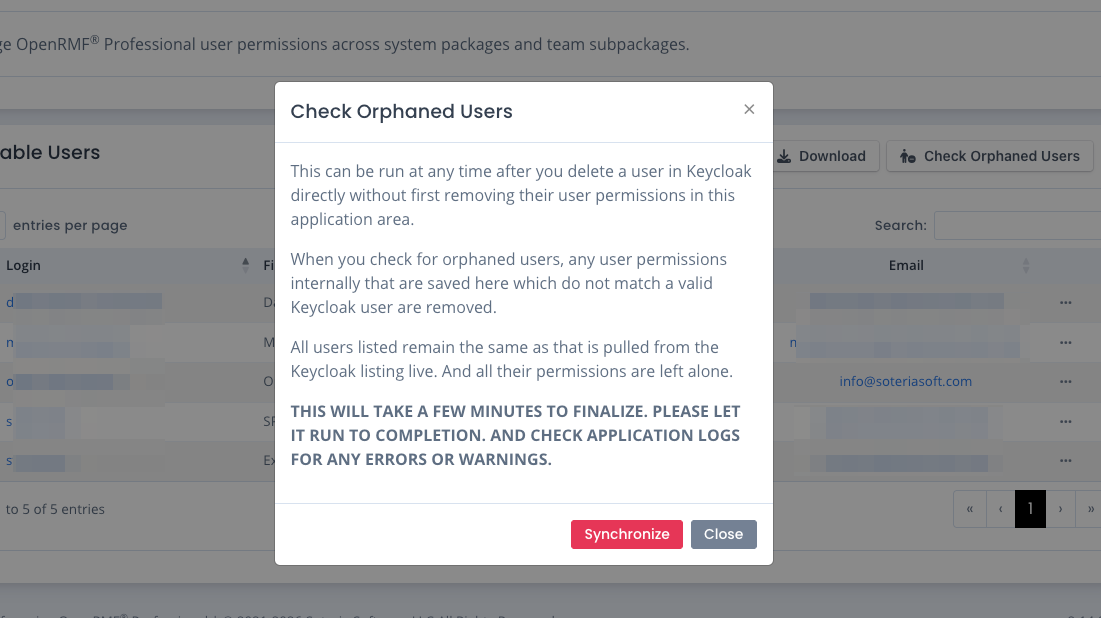
Once you migrate your users using the information shown elsewhere in this help section, the list of your users in OpenRMF® Professional is shown by logging in as a user with the Administrator role and going to the Administration menu to click Manage User Permissions. The screen below then appears showing all users found within Keycloak.
The users displayed are the active list of users setup within Keycloak. We directly access the Keycloak application setup internally with OpenRMF® Professional and display them in a listing. From here you can click on the Login name to access the user’s list of permissions. You can click the ... menu to delete all permissions for that user. Or use the checkboxes to select multiple users for removing all their user permissions quickly.
The list of users is in a similar table to all other tables within OpenRMF® Professional. You can use the number of entries to show a longer list, click the page numbers to cycle through the listing, and use the Search box to quickly filter your listing.
Click the Download button to download the list of all users into a Microsoft Excel *.xlsx file as well.
Note that currently you do not delete a User from this area. You must do that from the Keycloak screens found by accessing the Administration menu and choosing the User Management option near the bottom of the menu.
User Permissions are Listed upon Login for a User
An OpenRMF® Professional user’s permissions are saved in a session listing upon their successful login. When a user’s permissions are added or deleted while they are currently logged in, the web interface may still show the options on buttons, menus, and data differently than expected based on permission changes.
To use the new permission set, the user must logout to have these reset. Or go to their Permission listing using the icon in the top right, and click the Reset button on that page. The backend components of OpenRMF® Professional, howwever, do read any permission changes immediately. So the security model will stop bad actions from happening.
Please keep this in mind as you add and remove permissions from users. This is a change from previous OpenRMF® Professional versions and is done for performance and security combined.
Deleting all of an Individual’s User Permissions
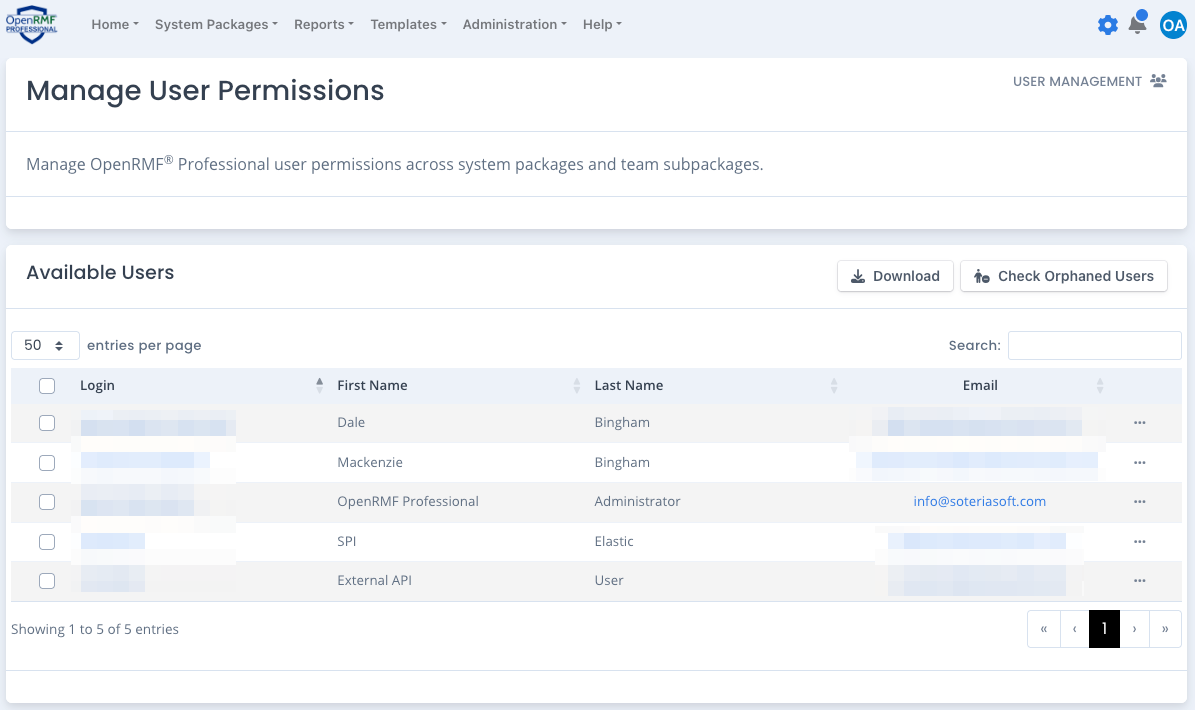
As noted above, you can click the ... menu and choose Delete User Permissions to remove all system package and team subpackage permissions for a user. When prompted to verify click OK and all permissions are removed.
The user must log out and back in to see the change on the web interface as noted above.
Bulk Deleting Individuals’ User Permissions
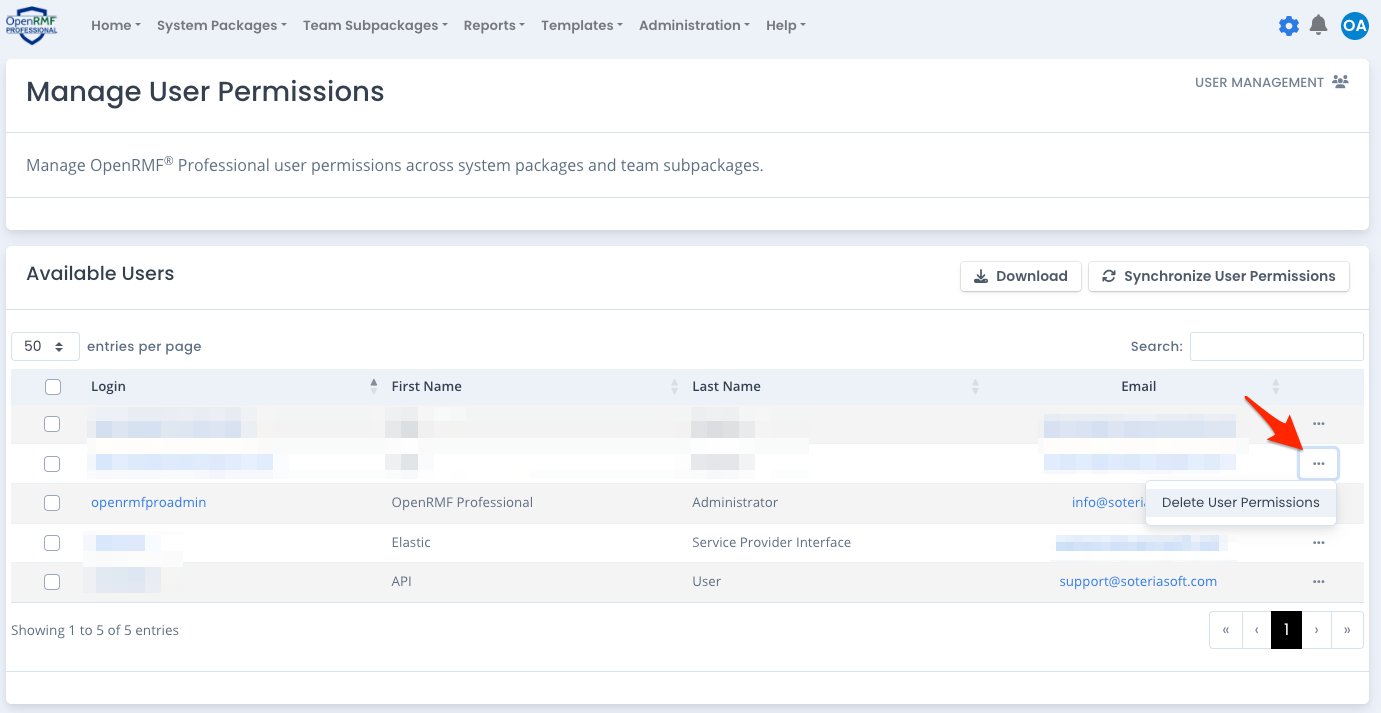
To remove multiple users’ permissions in bulk, use the checkboxes next to users and select one or more users. Then click the Delete Permissions options in the bulk menu shown below to remove them. When prompted to verify click OK and all permissions are removed.
The user must log out and back in, or go to the Permissions page to click the Reset button, to see the change on the web interface as noted above.
Check Orphaned User
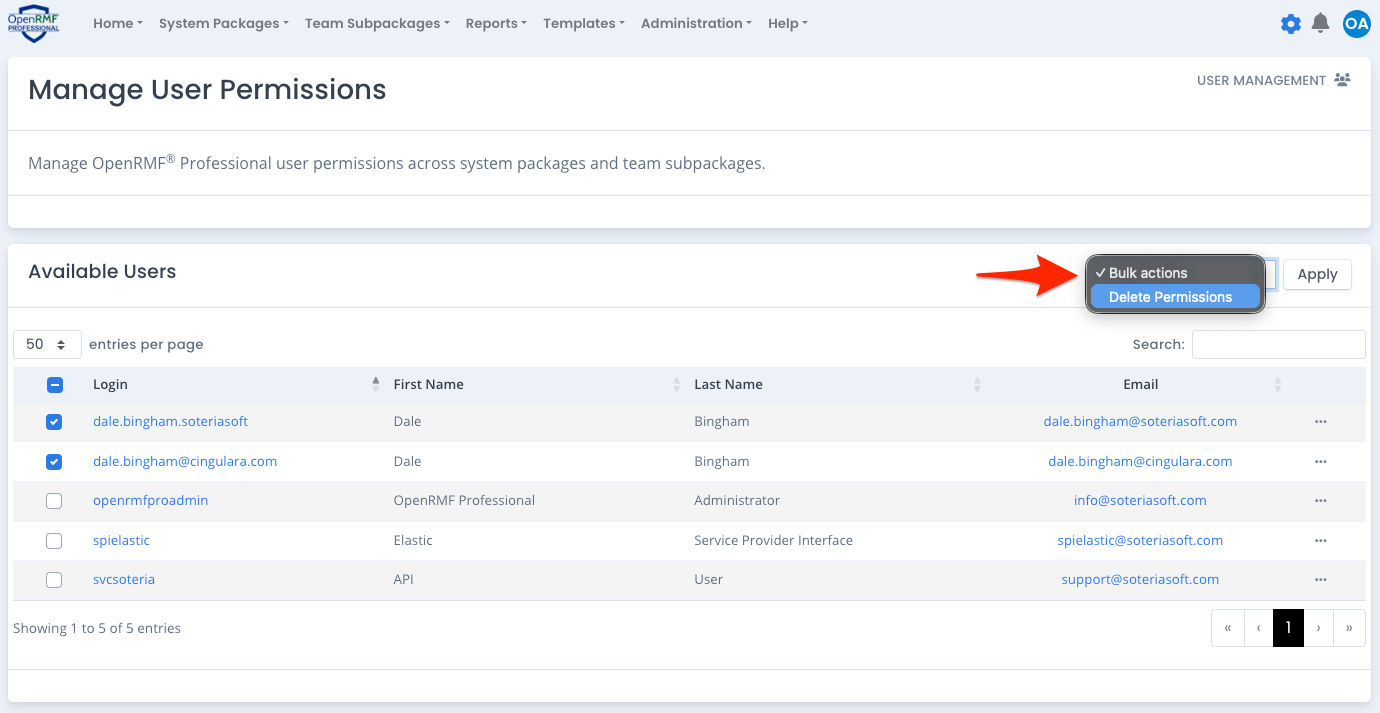
As users are removed directly from Keycloak, if their permissions are not cleaned up within OpenRMF® Professional there could be user permission records that do not point to a valid user. These are in essence “orphaned user records” that are no longer used, but cannot be visibly seen in the user interface.
When you run the Check Orphaned Users process using the button on the top right of the user table, these “orphaned users” are cleaned up. Any user permission records pointing to a user that no longer exists are removed. And the success message will tell you the number of removed permissions if there are any at all.
You can run this periodically as you desire when users change, are added, removed, etc. to keep your list of permissions valid. There is no harm in running this even if there are no orphaned user permission records.