Elastic AI SPI
The Elastic AI SPI allows synchronizing current data in OpenRMF® Professional with your Elastic Cluster setup with Elastic AI.
It creates indexes, AI Tools, and AI Agents to search, chat, and interact with your cyber compliance data.
Prerequisites for the Elastic AI Service Provider Interface
For the Elastic AI SPI you must be running at a minimum OpenRMF® Professional version 2.14.02 or higher. The 2nd patch of OpenRMF® Professional included additional external API calls required for this integration. This Elastic AI SPI is set up and installed on the same machine as your OpenRMF® Professional installation as it connects to and uses that software.
If you have a larger OpenRMF® Professional with several active system packages / accreditations being tracked and synchronized with your Elastic cluster you may wish to run multiple Elastic AI SPI components in a load balanced setup to offer the best performance for your installation.
You must also have Elastic 9.4.x or higher with the Elastic AI agents, tools, and models loaded and enabled to use this.
Setting up Your Elastic AI Service Provider Interface
To setup your Elastic AI SPI you must first have the Service Provider Interface enabled in your application settings. And you must have the latest NATS credentials created with your installation / upgrade to use the proper *.creds file in your setup. See the installation guide for more information.
Next go to the Administration – Manage Service Provider Interfaces menu option. And then click the Elastic AI Service Provider Interface link to load the form shown below.
On this form you must enter several items required to test and then use your Elastic AI SPI. The left section deals specifically with your setup in your Elastic cluster.
- The root Elasticsearch API URL for your cluster
- The root Kibana API URL for your cluster, similar to the above but usually a
.kb.versus a.es.in the URL - Your Elastic API Token for the user to connect, with access rights to create proper indexes based on the SiteKey (see the Elastic AI SPI installation manual)
- Optionally, the certificate fingerprint if your SSL Certificate is made by a private Certificate Authority (CA)
- The name of the Document Pipeline Id setup during installation (see the Elastic AI SPI installation manual)
- The AI inference model Id being used in the Document Pipeline
The right section deals specifically with your OpenRMF® Professional setup.
- The root of the External API, usually your same
https://root and then/api/external/on the end - The chosen External API application Key
- The External API token for the application Key used (or generate one by clicking the link) – lasts up to 1 year
- Yes/No to load/reload all your Framework data (frameworks, levels, controls, CCIs, etc.) upon the Elastic AI SPI startup
You will also see what the data indexes, AI Agent ID, and AI Tool IDs will start with using the Site Key from the Application Settings saved.
Note you should use the Test button to test your Elastic settings before saving and using this Elastic AI SPI.
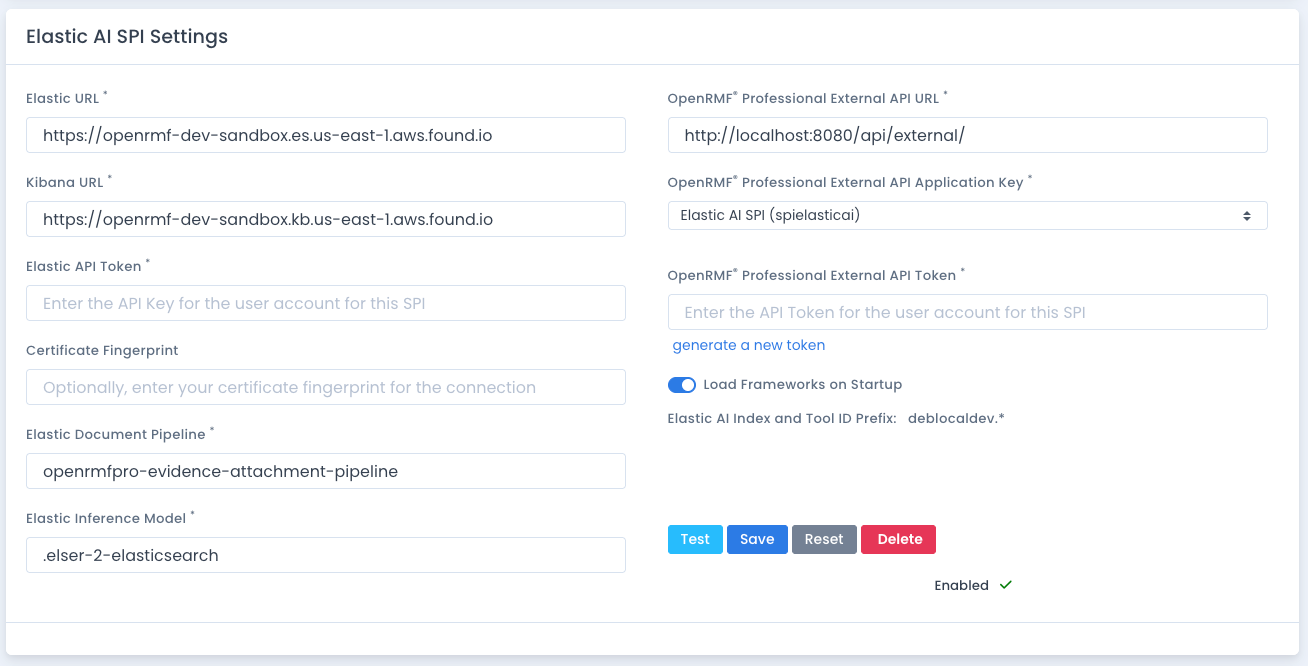
These settings are used when the Elastic AI SPI is first started, as it reaches out to your OpenRMF® Professional installation for these initial startup settings. You also can update the settings while the Elastic AI SPI is running and it will update the settings in memory for the next time the SPI is run.
Synchronizing Compliance with Elastic AI
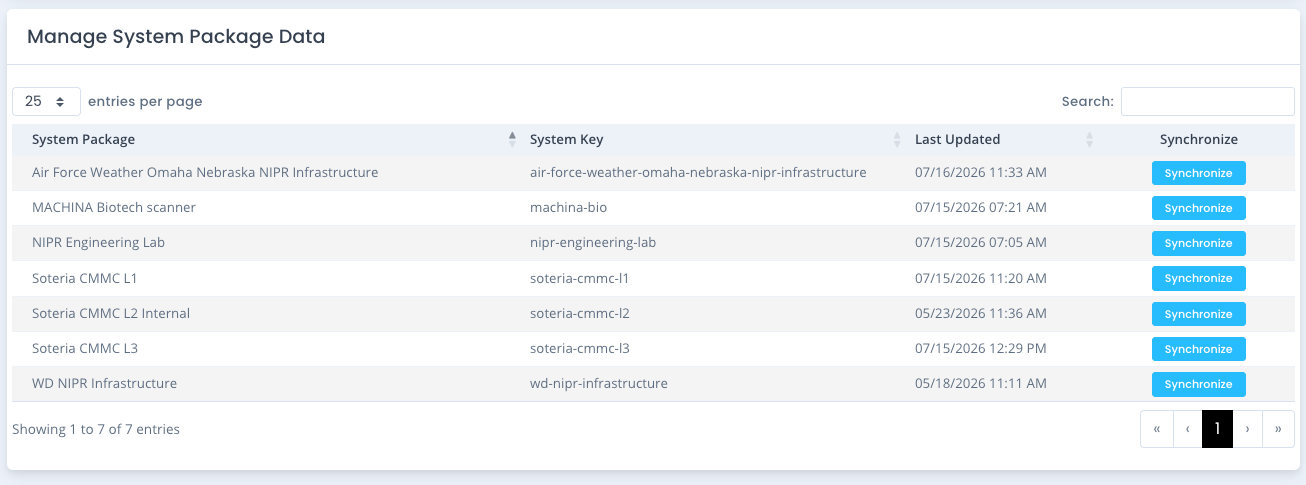
Once your Elastic AI SPI is tested and saved, there is a table of available system packages listed below the settings in a new section. This list is all the available system packages that the chosen External API Application Key associated user has access to at least view.
To synchronize the latest data with your Elastic Cluster, click the Synchronize button on the row of the system package you wish to use. It will prompt you and show you what data will be sent. Click the Verify button to start sending and synchronizing the data. The following information is synchronized in this process:
- System Package record
- Checklists
- Patch data
- POAM data
- Other Technology data
- Hardware
- Software
- Ports/Protocols/Services
- Compliance records and score
- Evidence, the actual files, and they are processed with the document pipeline for natural language processing
How it Works
The Elastic AI SPI connects to your OpenRMF® Professional installation and reads the configuration set for this SPI. It then listens for a particular message broadcast on the backend NATS infrastructure to tell it to run. When it receives a message, it calls back to OpenRMF® Professional to retrieve additional information on the system package it was sent. Then it calls several external API endpoints in OpenRMF® Professional to retrieve data such as checklists, patch vulnerabilities, scores, compliance, POAM and more.
For each data type, there is a corresponding index in Elasticsearch that is updated with that data for your particular OpenRMF® Professional installation or site name. And that data is removed from the indexes (if there) based on the systemKey of your system package. Then the data is added correctly for each index.
All of the indexes, AI Tools and AI Agents are created when the application is connected to your Elastic cluster. And once data is synchronized with Elastic your data is available to use through the AI Agent created.
To actually synchronize the data, from the Elastic AI SPI page (once configured) you see a list of all system packages that the Application Key user has at least Reader access to see. From that list you can click each Sync button and the Elastic server configured will have a few things set up and sent to it.
- There are indexes for each data type
- There are AI Tools, one for one with the indexes that have the same ID for the Tool as the Index name
- There is a single AI Agent for connecting all the AI Tools
There is also a set of nine (9) index and AI Tools specifically for just your framework data in your installation. And a single AI Agent for this as well. This allows you to do research, ask questions, and learn about the frameworks by themselves within your Elastic AI Agent.
These indexes and Tool IDs start with the
siteKeysetup in your Application Settings area. That allows you to have multiple OpenRMF® Professional installations, synchronized to one Elastic Cluster, and search just your system packages for a site or all of them across your entire portfolio of ATOs.